
Block out your day on a clock you can see.
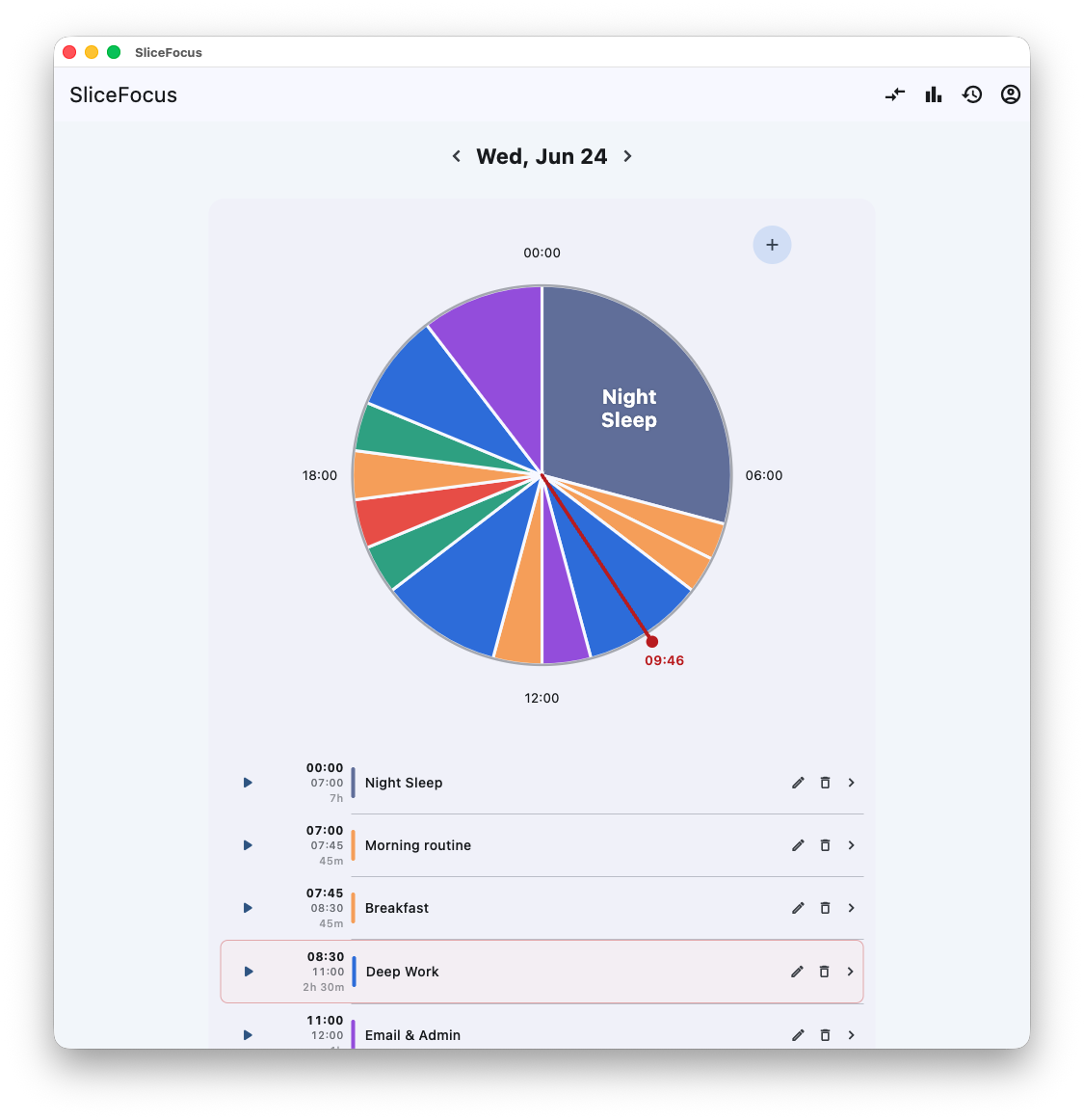
Time blocking means giving every part of the day a job before the day starts. SliceFocus does it on a 24-hour clock, so free time and crowded hours show at a glance. Free on iPhone and Mac.
How to do it
- Draw your blocks. Press and sweep along the clock to make a block. Times snap to five minutes. Or start from a template: Maker Schedule, 9-to-5 + Gym or Deep Work Sprint.
- See your meetings. Apple Calendar events show round the clock next to your blocks. You can also send your blocks to a calendar you choose.
- Fill the gaps. Tap an empty stretch and the app suggests something that fits the time.
- Colour by kind of work. Give blocks a category, such as Deep Work or Meetings. The categories are yours to name.
- Run the day. Start a block and its timer runs the work and break rounds. The time left shows in the Mac menu bar and on the iPhone lock screen.
- Check the plan against the day. Actual vs Planned lays the focus time you logged over the blocks you planned.
Good to know
- Plans change. Edit a block’s times and its neighbours adjust.
- A day you like can be saved as your own template.
- Each day has its own plan.
Free on iPhone and Mac. No ads, nothing to buy, no sign-up to start.
