Plan your study day on one clock.
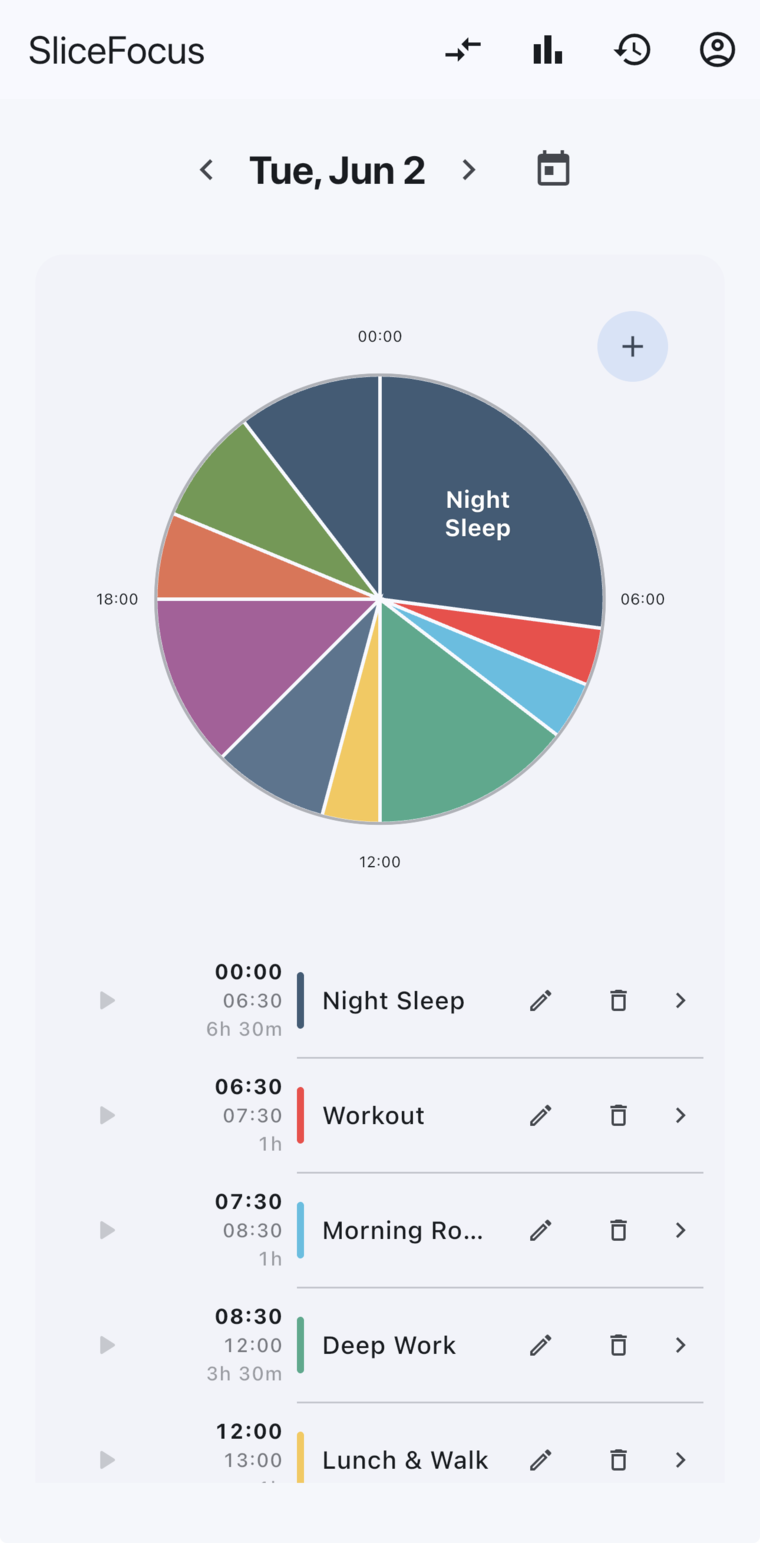
See your whole study day on a 24-hour clock, block by block. When you start a block, a Pomodoro timer runs the work and break rounds for you. Free on iPhone and Mac.
How to do it
- Start from the Student Day template. Tap Browse templates and choose Student Day. It lays out study from 09:00 to 12:00, lunch, study from 14:00 to 17:00, a break, and an evening review from 19:00 to 21:00.
- Make it yours. Rename each Study block to its subject, and move or resize blocks to fit your lectures. To add a block, press and sweep along the clock.
- Start a block when its time comes. The timer runs 25 minutes of work and a 5-minute break, and moves between them by itself. After four rounds the break is 15 minutes. You can change these lengths in Settings.
- Put the phone down. The countdown stays on the iPhone lock screen. With Focus Shield on, the apps and sites you picked stay out of reach during work rounds and come back on every break.
- Look back in the evening. Actual vs Planned shows which blocks you kept.
Good to know
- Your Apple Calendar events, such as lectures, show next to your blocks.
- You can start without an account. Signing in keeps your iPhone and Mac in step.
- The app is in English, for iPhone, iPad and Mac.
Free on iPhone and Mac. No ads, nothing to buy, no sign-up to start.